
I sometimes run into an annoying problem where I connect my Bluetooth headphones to my PC, only for the audio to start stuttering, cutting in and out, crackling, or sounding like a scratched CD.
What makes the problem even more frustrating is that the same headphones usually work perfectly fine with my phone or other devices. That makes it easy to assume something is wrong with Windows. And if you’re here because you’re experiencing the same issue, you’re definitely not alone.
From what I’ve found, Bluetooth audio stuttering in Windows usually comes down to something specific on the PC side. It could be interference from a 2.4 GHz Wi-Fi connection, Windows switching your Bluetooth headset into hands-free or call mode, outdated Bluetooth drivers, power-saving settings turning off the adapter, or even a loose or disconnected Wi-Fi/Bluetooth antenna.
Fortunately, most of these problems can be fixed without replacing your headphones or Bluetooth adapter. In this guide, I’ll show you how to fix Bluetooth audio stuttering on Windows 11 and Windows 10, starting with the quickest solutions that work for most users before moving on to more advanced fixes.
Why Is My Bluetooth Audio Stuttering on Windows 11/10?
Choppy Bluetooth audio almost always traces back to one of these causes, and knowing which one you’re dealing with saves you working through fixes that were never going to help:
- Wireless interference: Bluetooth and 2.4GHz Wi-Fi share the same frequency range, so your router, wireless mouse, and USB 3.0 ports all compete with your headphones for airtime.
- The Hands-Free profile: Windows switches your headset into low quality call mode when it needs the microphone, and sometimes gets stuck bouncing between modes.
- Power management: Windows shuts down the Bluetooth adapter to save power, which causes audio to cut out when the PC thinks it’s idle.
- Driver problems: Either an outdated driver or a bad new one from a recent Windows update.
- Weak signal: Distance, walls, or in the case of many desktops, Wi-Fi antennas that were never attached to the motherboard.
Before You Start: Rule Out the Easy Stuff
Run through these first, since they take seconds and save you from chasing a software fix for a hardware problem:
- Move closer to your PC. Bluetooth is generally reliable within about 3 to 5 meters. Walls, furniture, and even your own body between the device and the adapter can cause dropouts.
- Check the battery. Some headphones degrade audio quality or drop the connection when running low, even before they warn you.
- Disconnect it from your other devices. If your earbuds are still paired and connected to your phone, they can’t cleanly hold a connection to your PC at the same time. Turn Bluetooth off on the other device and test again.
- Test another Bluetooth device. If a second pair of headphones stutters the same way, the problem is your PC. If only one device stutters, focus on that device and its firmware.
Fix 1: Turn Off Hands-Free Telephony
This is the fix that works for the most people, so start here. Windows uses two Bluetooth profiles for headsets. A2DP handles stereo audio at decent quality, while the Hands-Free profile handles calls at a much lower bitrate.
The problem is that Windows sometimes switches to Hands-Free when it shouldn’t, or keeps bouncing between the two. That’s when you get the stuttering, the muffled sound, and in some cases audio that sounds slowed down or pitched lower than it should be.
Disabling the profile forces Windows to stay on A2DP:
1. Press Windows + I to open Settings.
2. Go to Bluetooth & devices and select Devices. On Windows 10, go to Devices > Bluetooth & other devices.
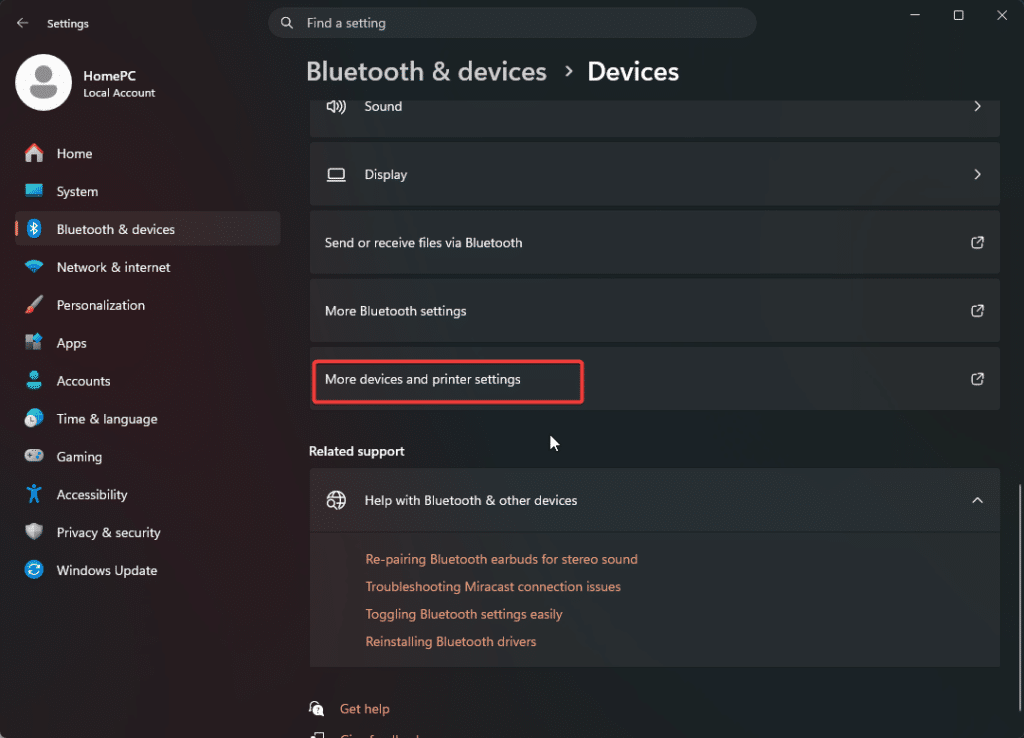
3. Scroll down and click More devices and printer settings.
4. Right-click your headset in the list and select Properties.
5. Open the Services tab and untick Handsfree Telephony.
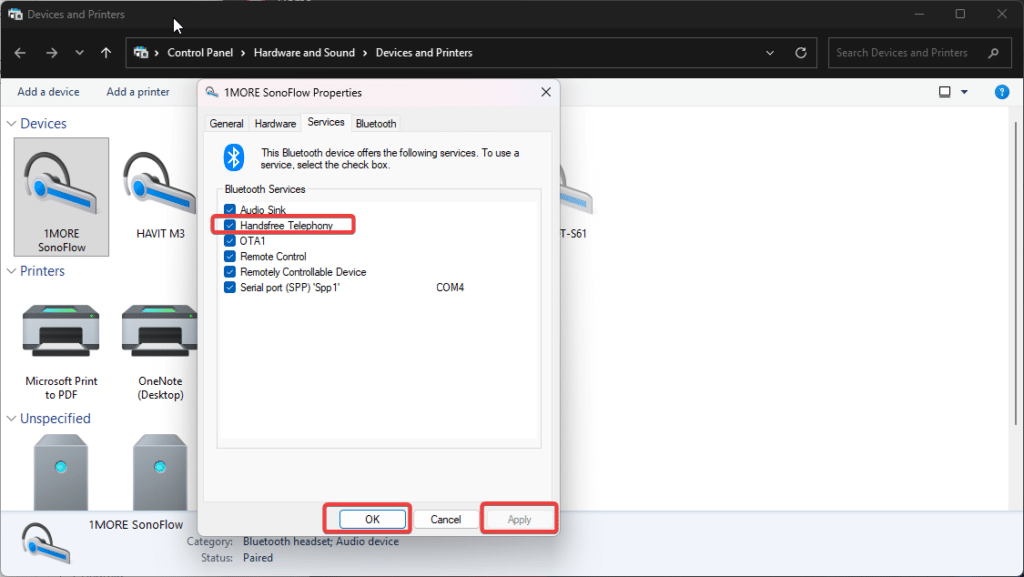
6. Click Apply, then OK.
7. Turn your headset off and back on again so it reconnects on the correct profile.
Note: This disables the microphone on your headset, so if you use it for calls or meetings you’ll need to leave this enabled and try the other fixes instead. Some users also report that unticking Remotely controllable device on the same tab helps.
Fix 2: Check Your Wi-Fi Antenna Is Actually Connected
This one sounds too simple to work, but it’s fixed the problem for a lot of users. On most motherboards, the Wi-Fi and Bluetooth share the same wireless card and the same antennas. So if you’re on ethernet and assumed the antennas were only for Wi-Fi, you may have left them off entirely, which leaves Bluetooth running on almost no antenna.
Check the back of your PC for the small threaded connectors near the I/O panel and screw the antennas on if they aren’t already attached. Users have reported this clearing up both the stuttering and weak Wi-Fi in one go.
Tip: If you’re using a USB Bluetooth dongle instead, put it on a USB extension cable and move it away from the back of the case. Metal, USB 3.0 ports, and the case itself all interfere with the signal.
Fix 3: Move Your Wi-Fi to the 5GHz Band
Bluetooth and 2.4GHz Wi-Fi run on the same frequency range, so they compete with each other. If your router is sitting close to your PC and broadcasting on 2.4GHz, that’s a very common cause of the stuttering.
To test whether this is your problem, turn Wi-Fi off completely and play something over Bluetooth. If the stuttering stops, interference is the cause. From there:
1. Connect your PC to your router’s 5GHz network instead of the 2.4GHz one. Most routers broadcast both, usually with a name ending in 5G.
2. If your router only broadcasts one combined network, log into its admin page and split the bands so you can pick 5GHz directly.
3. If you’re on ethernet anyway, just disable Wi-Fi on the PC.
Moving the router further from your PC or your headphones also helps if changing bands isn’t an option.
Fix 4: Stop Windows Turning Off Your Bluetooth Adapter
Windows power management can shut down the Bluetooth adapter to save power, which causes dropouts during quieter passages or when the PC thinks it’s idle. This is especially common on laptops:
1. Press Windows + X and select Device Manager.
2. Expand Bluetooth and double-click your Bluetooth adapter (usually the entry with your chipset name, like Intel Wireless Bluetooth).
3. Open the Power Management tab.
4. Untick Allow the computer to turn off this device to save power.
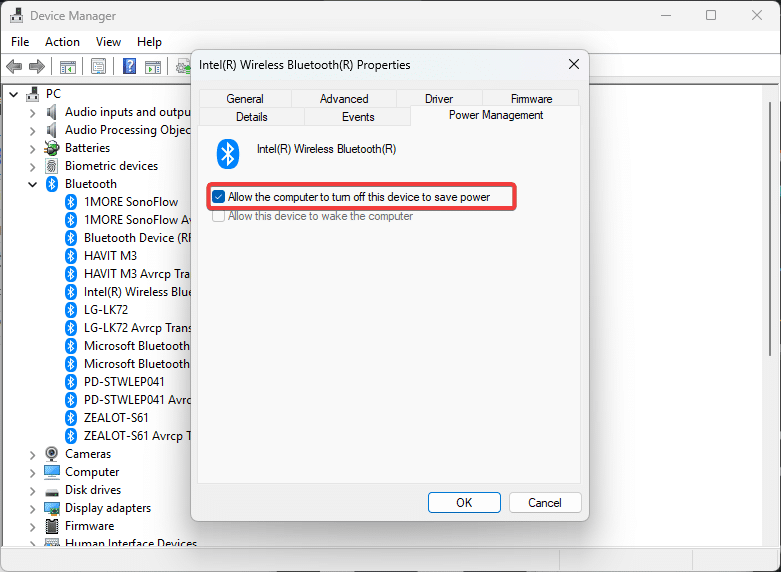
5. Click OK and restart your PC.
Do the same for your Wi-Fi adapter if it has the option, since the two share hardware on most systems.
Fix 5: Disable Audio Enhancements
Windows audio enhancements are meant to improve your sound, but they add processing that some Bluetooth devices don’t handle well:
1. Press Windows + R, type mmsys.cpl, and press Enter.
2. Under the Playback tab, right-click your Bluetooth device and select Properties.
3. Open the Enhancements tab and tick Disable all enhancements.
4. Click Apply, then OK.
Note: If there’s no Enhancements tab on your device, enhancements aren’t the cause and you can move on to the next fix.
Fix 6: Change the Audio Format
If your driver doesn’t handle the current sample rate well, you’ll get static or stuttering. Dropping to a lower format often clears it up:
1. Press Windows + R, type mmsys.cpl, and press Enter.
2. Right-click your Bluetooth device under the Playback tab and select Properties.
3. Open the Advanced tab.
4. Under Default Format, select 16 bit, 48000 Hz (DVD Quality).
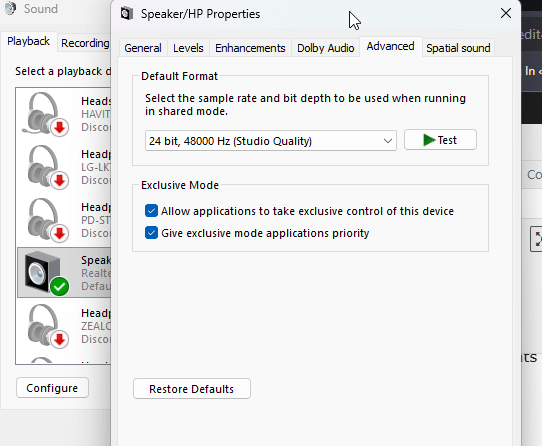
5. Click Apply, then OK and test your audio.
If that doesn’t help, go back and work through the other formats until you find one that holds a stable connection.
Fix 7: Update or Roll Back Your Bluetooth Driver
Outdated drivers cause stuttering, but so do bad new ones, which is why this fix cuts both ways. If your problems started right after a Windows update or a driver update, rolling back is more likely to help than updating:
1. Press Windows + X and select Device Manager.
2. Expand Bluetooth, right-click your adapter, and select Properties.
3. Open the Driver tab.
4. Click Roll Back Driver if the option is available, or Update Driver if it isn’t.
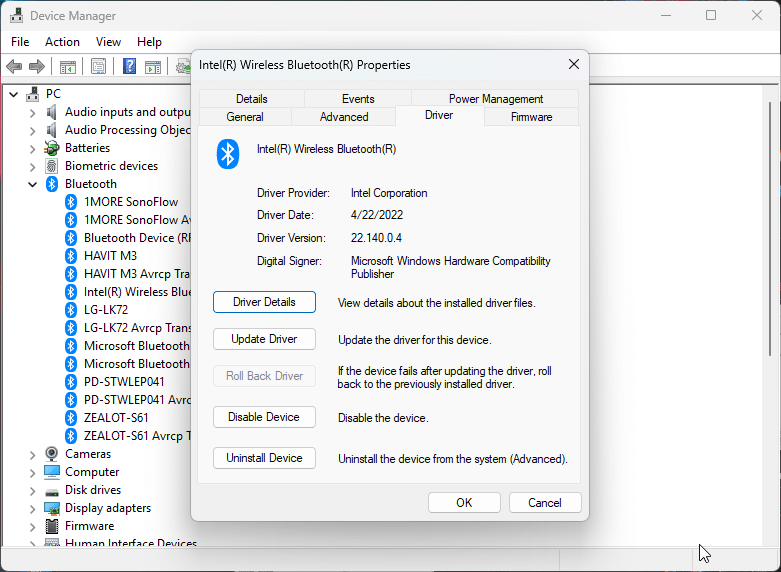
5. Restart your PC.
Tip: Don’t rely on the generic driver Windows installs by default. Go to your motherboard or laptop manufacturer’s support page, find your exact model, and download their Bluetooth driver directly. Several users have found the manufacturer’s driver fixed stuttering that the Windows one caused.
Fix 8: Run the Bluetooth Troubleshooter
It’s not the most powerful fix on this list, but it’s free and it occasionally catches a misconfigured service:
1. Press Windows + I to open Settings.
2. Go to System > Troubleshoot > Other troubleshooters. On Windows 10, go to Update & Security > Troubleshoot > Additional troubleshooters.
3. Find Bluetooth and click Run.
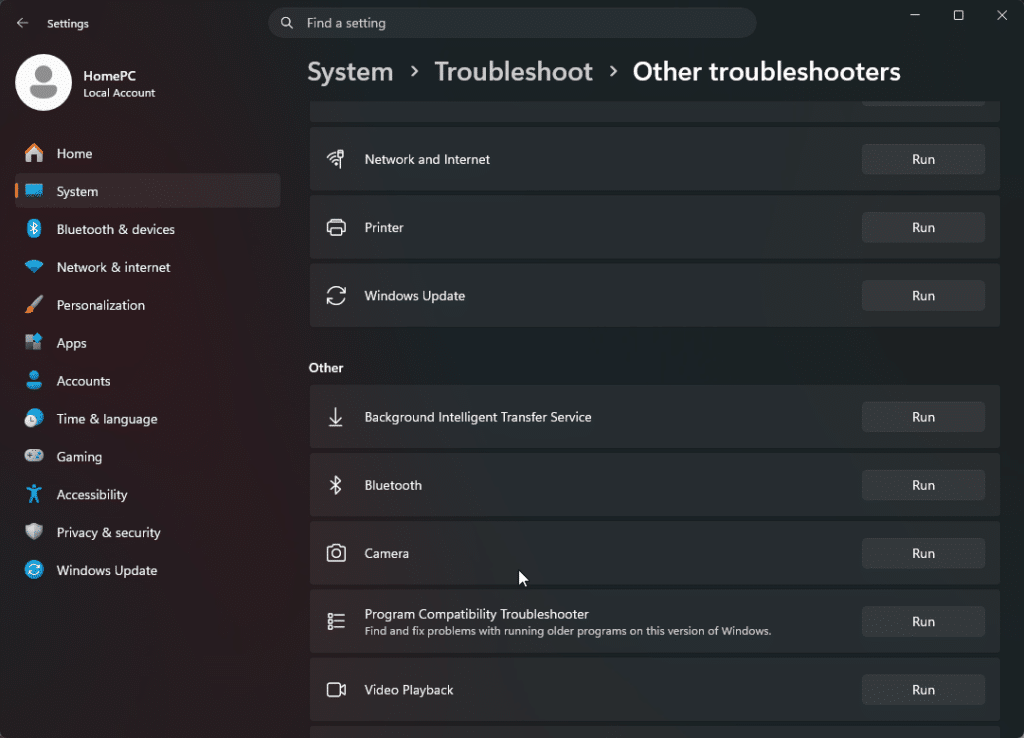
4. Follow the on-screen instructions and restart your PC.
Fix 9: Remove the Device and Pair It Again
Bluetooth pairings can get corrupted, especially if the device has been paired to several machines. A clean re-pair clears that out:
1. Press Windows + I, go to Bluetooth & devices, and find your headset.
2. Click the three dots beside it and select Remove device.
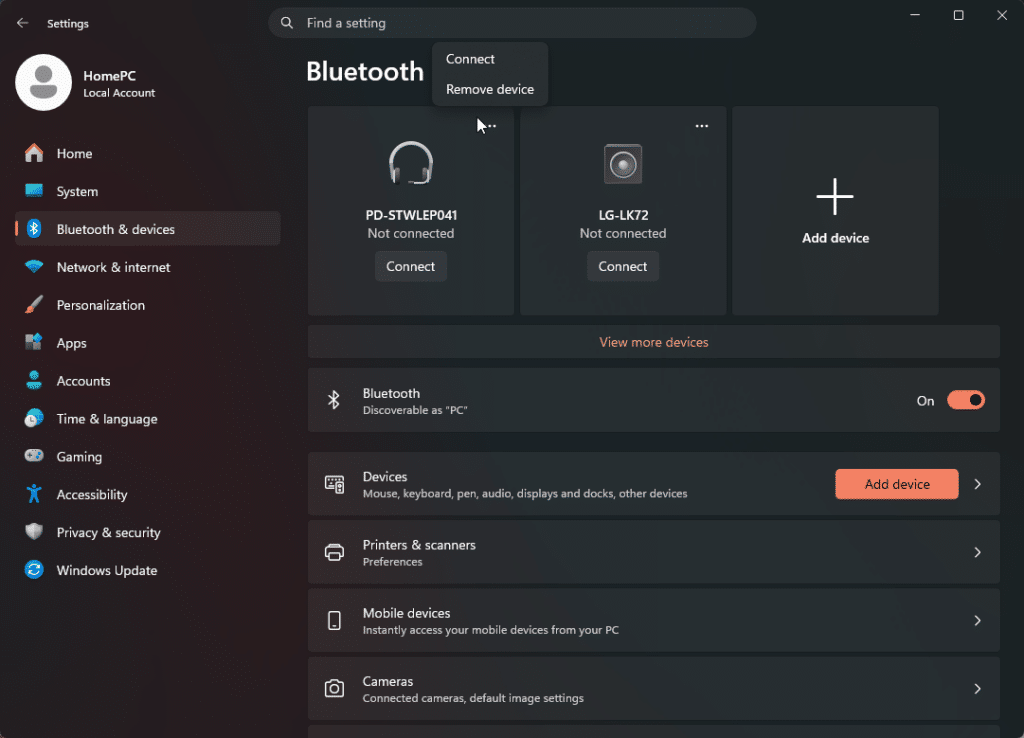
3. Turn Bluetooth off on your PC, then turn your headset off.
4. Make sure Bluetooth is off on any other device the headset has been paired with, like your phone.
5. Turn your headset on and put it in pairing mode, then turn Bluetooth back on and pair it fresh.
Fix 10: Unpair Your Phone or Remove Phone Link
Several users have traced stuttering back to their phone. If your phone is paired to the PC over Bluetooth, or connected through Phone Link, it can compete with your headphones for the same adapter.
Go to Settings > Bluetooth & devices and remove your phone from the device list. If you use Phone Link, open it, go to Settings > Devices, and unpair your phone there too. Test your audio afterwards.
Fix 11: Disable the AAC Codec Through the Registry
This one is aimed at the specific symptom where audio sounds slowed down or pitched lower rather than just skipping. It’s an advanced fix, so create a System Restore Point before you start:
1. Press Windows + R, type regedit, and press Enter.
2. Navigate to the following key:
HKEY_LOCAL_MACHINE\SYSTEM\CurrentControlSet\Services\BthA2dp\Parameters
3. If the Parameters key doesn’t exist, right-click BthA2dp, select New > Key, and name it Parameters.
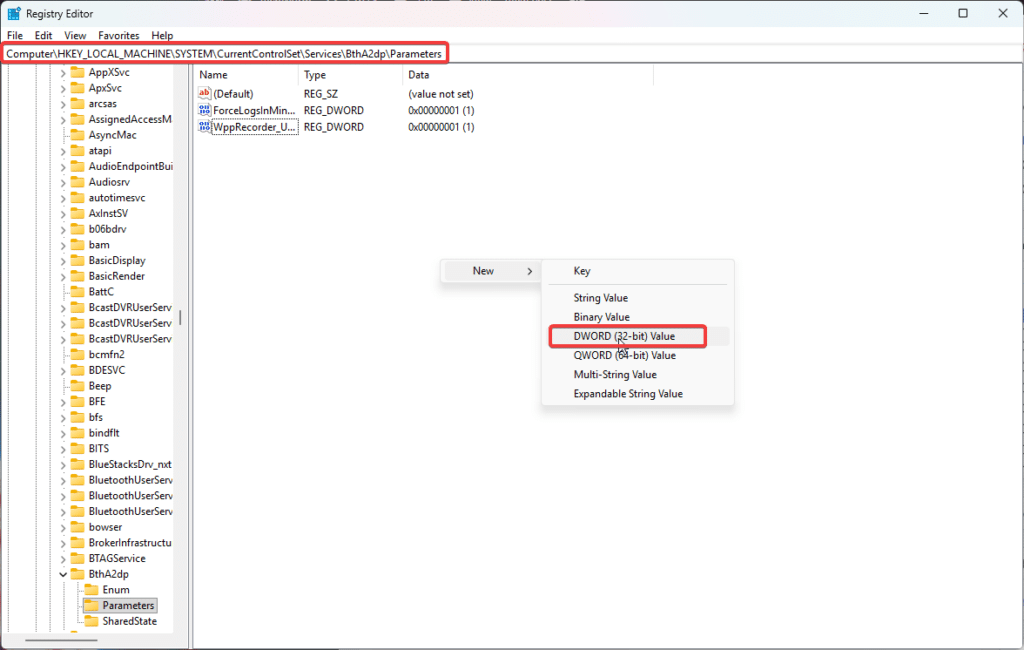
4. Right-click in the right pane, select New > DWORD (32-bit) Value, and name it BluetoothAacEnable.
5. Leave the value data at 0.
6. Close the Registry Editor and restart your PC.
This forces Windows to use SBC instead of AAC, which is less efficient but noticeably more stable on some adapters.
Fix 12: Try a Different USB Port or a Newer Adapter
If you’re using a USB Bluetooth dongle, the port itself matters. USB 3.0 ports generate interference in the 2.4GHz range, which is exactly where Bluetooth operates:
1. Move the dongle to a USB 2.0 port, ideally on the opposite side of the machine from any USB 3.0 devices.
2. Keep it away from external drives and unshielded USB 3.0 cables.
3. If that doesn’t help and your adapter is a few years old, replace it with a Bluetooth 5.0 or 5.3 adapter from a manufacturer that publishes proper Windows drivers.
Adapters vary more than people expect. There are reports of two users swapping adapters and each one’s headphones working fine on the other’s hardware, so a mismatch between a specific headset and a specific adapter is a real possibility.
Tips for Keeping Bluetooth Audio Stable
Don’t run Bluetooth audio and heavy 2.4GHz traffic together: Wireless mice, wireless keyboards, and 2.4GHz Wi-Fi all share the band. Moving even one of them off it frees up room for your audio.
Bluetooth audio has hard limits: Even a perfect setup runs at a lower bitrate than a wired connection. If you need consistently high quality for editing or mixing, use a cable or a dedicated wireless receiver rather than fighting Bluetooth.
Watch out after Windows updates: A lot of these complaints start right after a feature update or a driver refresh. If yours did, roll back the Bluetooth driver before working through everything else.
Skip the driver updater tools: Most of them are paid software that just does what Device Manager and your manufacturer’s support page already do for free, and the drivers they install aren’t always the right ones for your hardware.
Final Thoughts
Bluetooth stuttering on Windows 11/10 is almost always down to the Hands-Free Telephony profile, interference from 2.4GHz Wi-Fi, or something to do with your drivers and power settings. Work your way down the list above and you’ll most likely find your fix within the first few.
And if you’ve just built or bought a desktop and the stuttering was there from day one, check your Wi-Fi antennas before anything else. It’s a five second check that has saved a lot of people several hours.
Frequently Asked Questions
Why do my Bluetooth headphones work fine on my phone but stutter on my PC?
Phones have better tuned Bluetooth stacks and dedicated antennas, while PCs often share an antenna between Wi-Fi and Bluetooth and run into interference from USB 3.0 ports and 2.4GHz Wi-Fi. It’s almost always the PC side, not the headphones.
Why does my Bluetooth headset sound terrible during calls?
Windows switches from the A2DP stereo profile to the Hands-Free profile when it needs the microphone, and that profile uses a much lower bitrate. This is normal behaviour rather than a fault, though disabling Hands-Free Telephony fixes it if you don’t need the mic.
Will disabling Hands-Free Telephony stop my mic from working?
Yes. Your headset’s mic won’t be available to Windows afterwards. If you need it for meetings, leave it enabled and try the interference and driver fixes instead.
Does the Bluetooth version of my adapter matter?
It helps. Bluetooth 5.0 and later handle range and interference better than older versions, but a well-placed 4.2 adapter will often outperform a badly-placed 5.3 one, so position and antennas matter just as much.