
Windows remains one of the most targeted systems by threat actors by volume, according to recent statistics from AV-TEST, with threats ranging from malware and phishing to viruses constantly putting its users at risk.
I know we mostly get tempted to download from unofficial sites or access unverified sources for convenience, but leaving your device unprotected while doing so opens the door to serious security risks.
And that’s where Windows Security, a comprehensive security solution built into the system, comes in. With it, there is a higher chance of protecting yourself against these security threats because it has been helpful for a lot of users like myself as an anti-virus tool.
The Windows Security app comes with features such as Microsoft Defender Antivirus, Windows Firewall, and Smart App Control that allow you to configure the security settings as you see fit. In this article, I’ll walk you through everything you need to know about configuring Windows Security on Windows 11/10.
Activate Windows Security on Windows 11/10
You can access and activate the Windows Security suite on your Windows 11/10 PC through the Settings app or the Windows Security app itself. Here is how:
Step 1: Press Windows + I on your PC to open Settings, click on Privacy & Security, and then click on Windows Security OR type “Windows Security” in your PC’s search bar and open the app from the results.
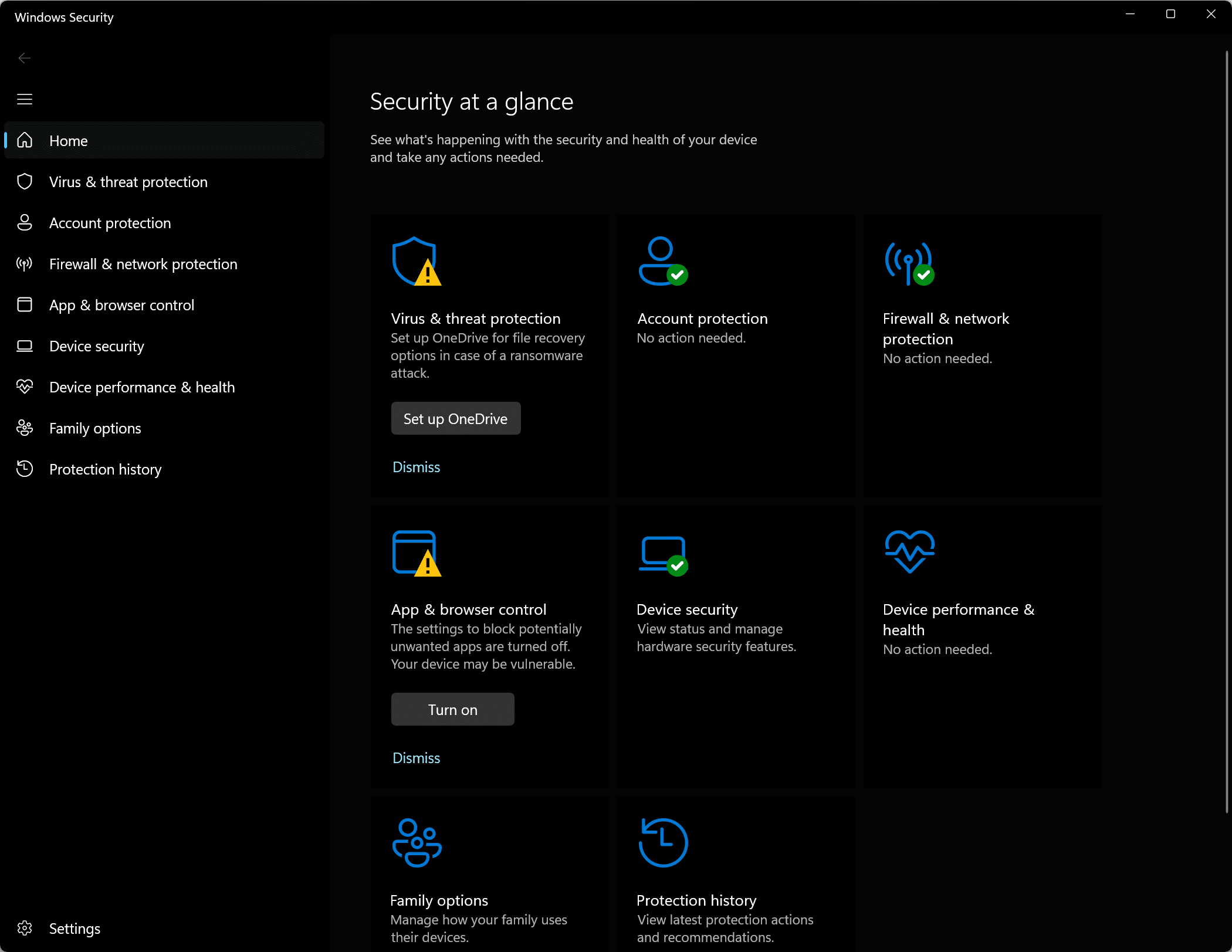
Step 2: On the Windows Security homepage, select Virus & threat protection
Step 3: Click on Manage settings and then toggle on Real-time protection, Cloud-delivered protection, Automatic sample submission, or any of the other options as you see fit.
Step 4: Return to the Windows Security homepage, and click Firewall & network protection
Step 5: Open each of the Network types and enable Microsoft Defender Firewall for them
While these are some of the features under Windows Security you can activate, there are also other features, such as App & browser control, that you can enable.
Note: You must be a PC administrator to configure certain settings in Windows Security. If you are not, you can contact your IT administrator.
To ensure Windows alerts you if any security issue is found on your system, do the following:
Step 1: Press Windows + R to open Run dialog box
Step 2: Type control panel in the box and press Enter.
Step 3: Find Security and Maintenance on the Control Panel page and open it.
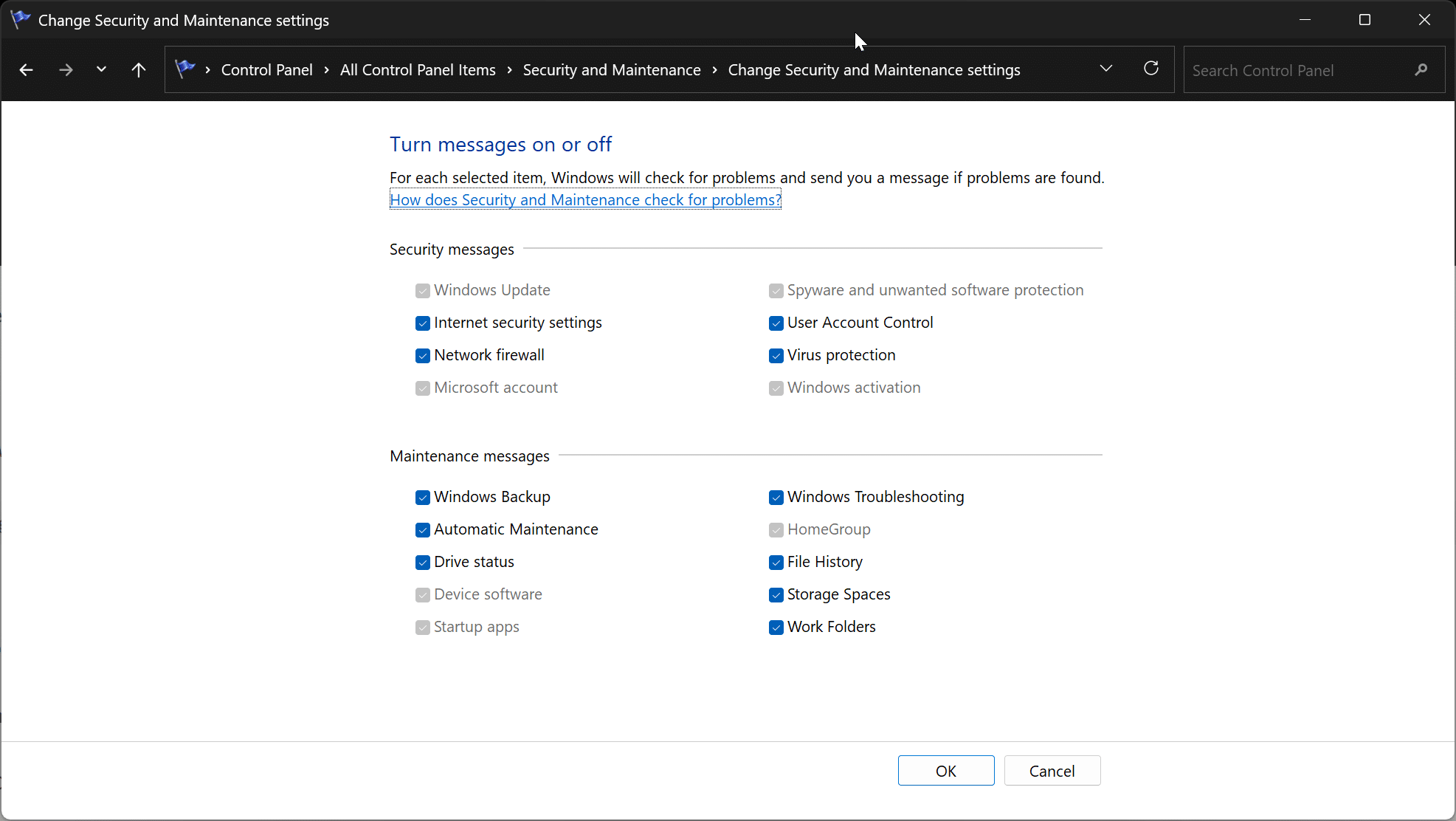
Step 4: Click Change Security and Maintenance settings and then check the boxes for Internet security settings, Network firewall, and Virus protection.
Facing Issues Activating Windows Security?
I have come across several cases where Windows 11/10 users reported being unable to activate Windows Security. In most of these cases, a third-party system or software has likely tampered with the PC’s security settings.
For example, a case was reported on Microsoft Learn about a user who downloaded a game from an unofficial site; they were somehow led to disabling Windows Security during installation but could not reactivate the security suite afterward.
Using certain solutions can help fix this issue. These include:
- Running Microsoft Windows Malicious Software Removal Tool – Press Windows + R, type MRT then click Enter to scan your system for malicious software and remove it
- Running antivirus tools like Malwarebytes.
- Refreshing Windows Security Service – Open Windows Services (Press Windows + R, type services.msc and press Enter), find Windows Security Service, right-click it, and click Refresh.
- Repair System Files
However, we’ve found a very effective approach that has helped many solve these same issues. Let’s go over it below:
Step 1: In the Windows search box, type “PowerShell”.
Step 2: Click Run as Administrator on the matching PowerShell result, then click “Yes” on the following prompt.
Step 3: Now, enter the following commands separately in the order shown below:
Set-ExecutionPolicy Unrestricted
Type “Y” followed by Enter if prompted after entering the above command.
Get-AppXPackage -AllUsers | Foreach {Add-AppxPackage -DisableDevelopmentMode -Register “$($_.InstallLocation)\AppXManifest.xml”}Set-ExecutionPolicy Restricted
After executing the commands, try opening Windows Security and see if it works properly.
Note: You should know that Microsoft Defender Antivirus gets turned off automatically if you have another antivirus app enabled or installed on your PC. As soon as you uninstall the third-party antivirus app, Microsoft Defender Antivirus turns back on automatically.
Tips to Help You Secure Your Windows 11/10
If you’ve become more conscious about your PC’s safety and want to start building better habits, here are some practices I’d recommend following:
- Keep Windows Defender running at all times: According to AV-TEST, Microsoft Defender Antivirus scored a perfect 6/6 across Protection, Performance, and Usability in its December 2025 consumer test, a score it has held consistently throughout 2024 and 2025. Having it running keeps you protected most of the time. You may sometimes run into false positives where it flags a legitimate file, but overall it remains one of the most reliable built-in security tools available for Windows 10 and 11.
- Install Windows updates and patches regularly: Microsoft regularly releases patches to fix known security vulnerabilities. If you leave your system unpatched, those open vulnerabilities become easy entry points for attackers to exploit.
- Run a dedicated antivirus tool like Malwarebytes occasionally: Windows Defender handles day-to-day protection, but running a secondary tool like Malwarebytes every now and then can catch things that may have slipped through.
- Avoid cracked software, game cheats, and torrents: These are some of the most common ways malware ends up on people’s devices. If you absolutely must download from unofficial sources, do serious research before you click anything.
- Use a virtual machine for untrusted websites: If you ever need to visit a site you don’t fully trust, running it inside a virtual machine like VirtualBox keeps any potential damage contained and away from your main system.
- Don’t click links or attachments you weren’t expecting: Even if an email or message looks like it’s from someone you know, if you weren’t expecting a link or attachment from them, don’t click it. Verify first. Phishing attacks rely on people acting before they think.
Wrap Up
Having covered how to activate Windows Security on Windows 10 and 11, it’s worth noting that while Windows Defender is pretty good at identifying threats, it doesn’t always block everything on its own. That’s why the extra measures covered in our tips above go a long way in keeping you protected.
Most importantly, be mindful of where you’re downloading from as game cheats, cracked software, and pirated content are some of the easiest ways to invite malware onto your device. If you must, do your research thoroughly before downloading anything from unofficial sources.
And if you feel you want an extra layer of protection beyond what Windows Security offers, a third-party antivirus is worth considering. Malwarebytes and ESET are both strong options and personally, Malwarebytes is my go-to.
You can also read: How To Update Windows Security Signatures Manually On Windows 11/10