

I can’t remember the last time I had to manually activate my Windows PC or keep track of my product key, largely thanks to digital license linking and automatic reactivation.
So far as you’ve linked your Microsoft account to a digital license in Windows 10/11, you usually won’t have to re-activate Windows manually or buy a new license after reinstallation, hardware changes (with the help of the Activation Troubleshooter), and even when you get a new PC, but only if you’re on a retail license.
The process of linking your Microsoft account to your Windows digital license is actually quite straightforward, but some users still face issues while trying to do it.
So I’ll walk you through the steps and also cover how to fix the most common issues users run into along the way.
Note: If you’re not planning any hardware changes or switching to a new PC, you don’t really need to worry about linking your Windows 11/10 license to your Microsoft account. On already-activated devices, the license is tied directly to your hardware and Microsoft recognizes your device through its hardware ID, so you’re already covered.
Link Your Microsoft Account to Digital License in Windows 11/10
If you are changing a major hardware component such as the motherboard on your PC and want to ensure you can still access your digital license through your Microsoft account, follow the steps below:
1. Sign in as an administrator on your activated Windows PC: To confirm you’re signed in as an admin, press Windows + I to open the Settings app, then click the profile name at the top left to open the Accounts page. If you’re signed in as an admin, you’ll see “Administrator” written under your name. If not, lock your PC and sign back in with the admin account.
2. Confirm your administrator account is using the Microsoft account you want to link to, not a local account: Go back to the same Accounts page from Step 1 and check if your Microsoft account email address is shown above “Administrator.” If an email address is there, you’re good to go. If not, you’re on a local account and will need to add a Microsoft account first.
3. Go to Settings > System > Activation
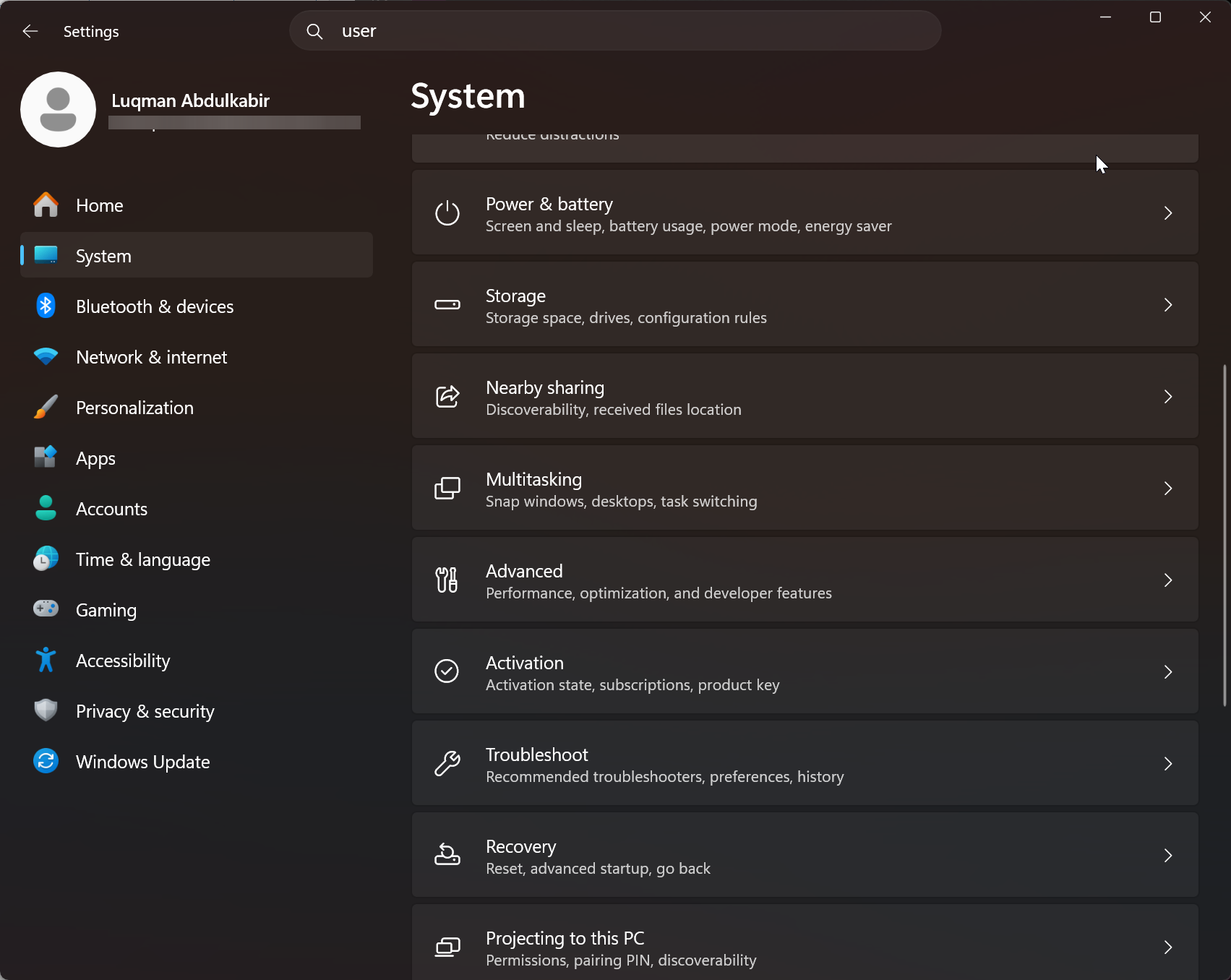
4. Select Add an Account, enter your Microsoft account credentials (email address and password), then select Sign In
5. Once done, you should see “Windows is activated with a digital license linked to your Microsoft account” on the Activation page as a confirmation. You may need to restart your PC for the changes to take full effect before.
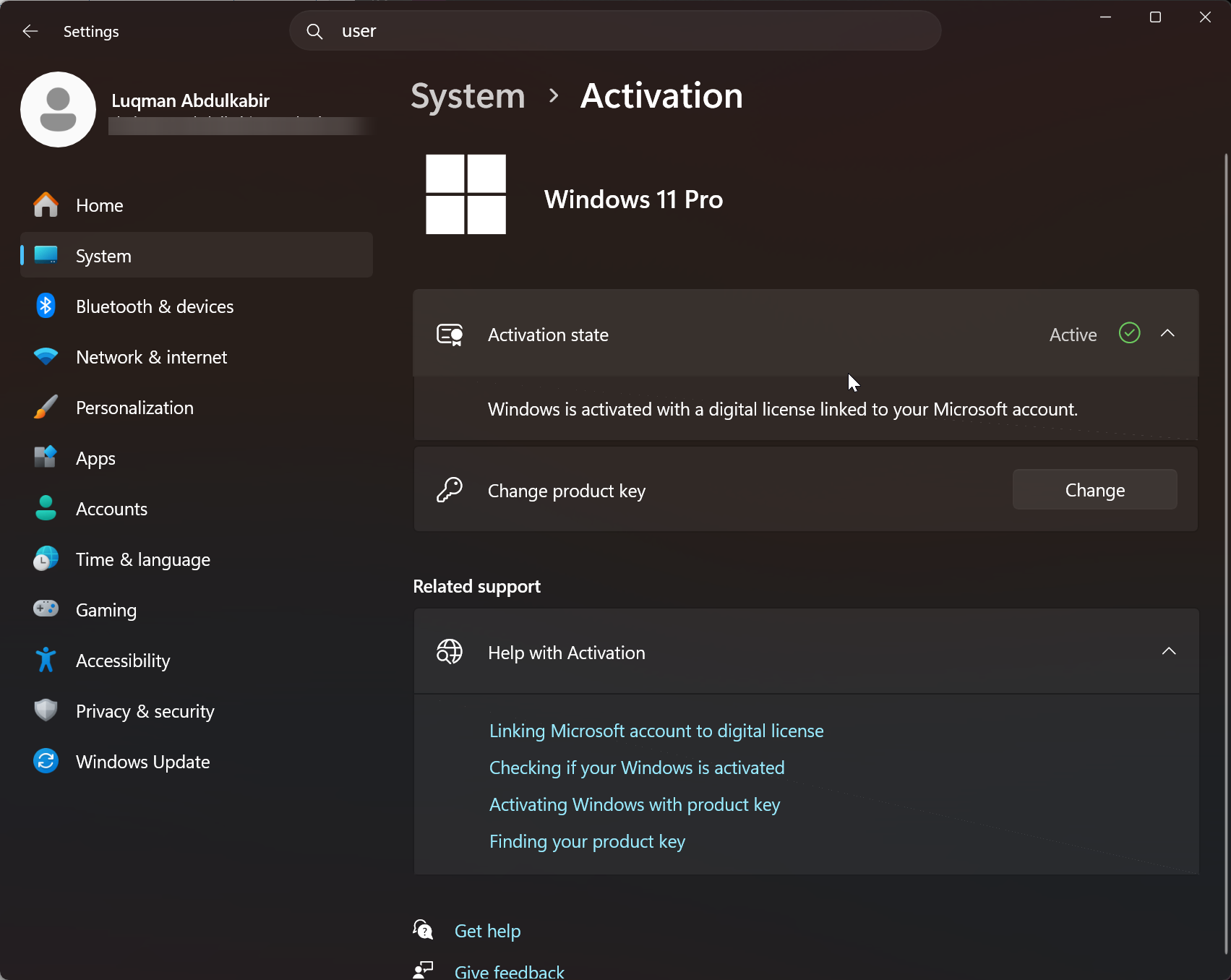
You won’t see the Add an Account buttom if you’ve already moved from local account to Microsoft account on your PC since Windows 10/11 automatically links the digital license to whichever Microsoft account you add as an administrator during setup.
Hence, you can also link your Microsoft account to your Windows digital license during a clean install or simply by just changing from local account to Microsoft account on admin profile.
How to Fix it When You Can’t Link Your Microsoft Account to Your Digital License in Windows 10/11
You may sometimes run into issues linking your Windows digital license to your Microsoft account, but here are some ways to fix it:
- Make sure Windows is actually activated on your PC: It’s possible Windows isn’t activated on your device at all, so check this first:
- Press Windows + I to open Settings
- Click System on the left panel and select Activation
- Under Activation state, you should see Active — this means your device is activated and you should be able to link your Microsoft account without any issues
- Also pay attention to the text under the Activation state. If it reads “Windows is activated with a digital license” it means your Microsoft account isn’t linked yet. If it reads “Windows is activated with a digital license linked to your Microsoft account” then you’re already set.
- Make sure you’re linking through an administrator account: Only an admin account can complete the linking process, so confirm you’re signed in as one before trying again.
- Restart your PC after switching from a local account to a Microsoft account: If you recently switched your administrator account from a local account to a Microsoft account, restart your PC first before trying to link. The restart ensures the changes take effect properly.
How to Find Your Windows Product Key
If you’re still unable to link your Microsoft account to your digital license, it’s a good idea to find and save your Windows product key. This can come in handy when reinstalling Windows, switching hardware, or moving to a new PC. Here are two ways to do it:
Using Windows PowerShell
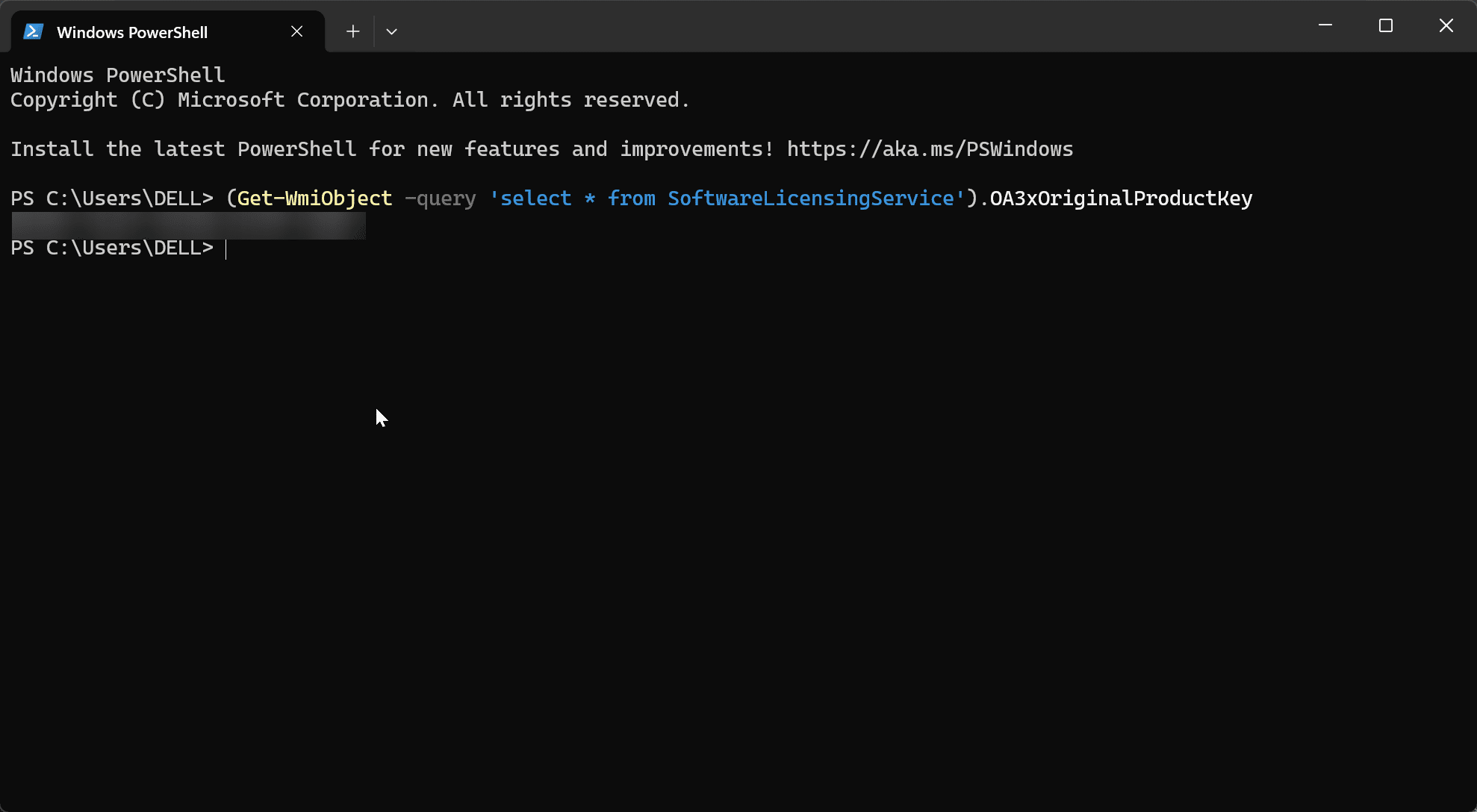
- Open PowerShell through the search box
- Type the command below and press Enter:
(Get-WmiObject -query 'select * from SoftwareLicensingService').OA3xOriginalProductKey
3. Your product key will be displayed. Copy and save it somewhere safe
Using a third-party tool like Free PC Audit
- Download and install Free PC Audit and run it on your PC
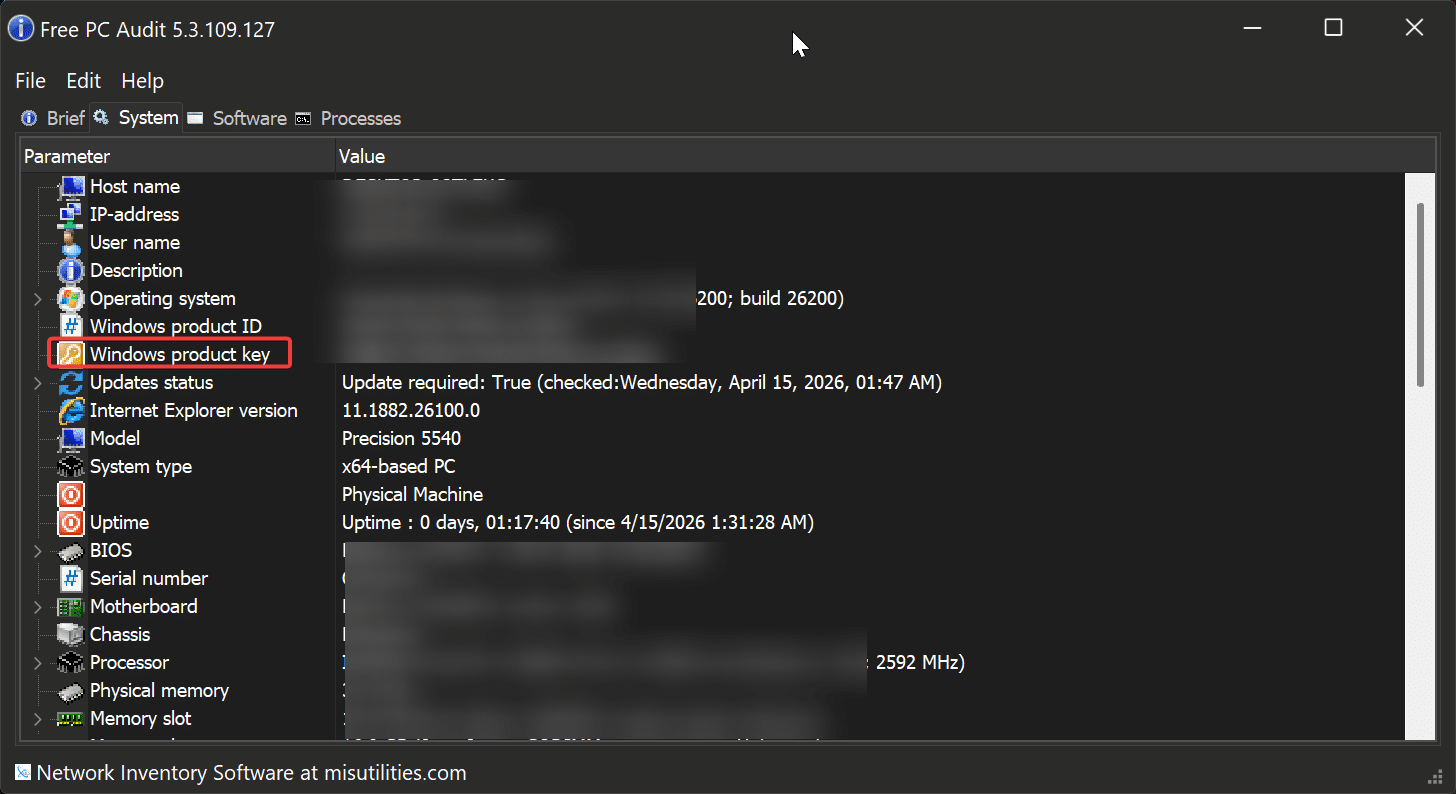
2. Go to the System tab and look for your Windows product key. From there, you should be able to copy and save it from there
Final Thoughts
Follow the steps covered above to link your digital license to your Microsoft account so you can carry it over whenever you make hardware changes or reinstall Windows.
The simplest way to get it done is switching from a local account to a Microsoft account on your PC, once you do that, the linking happens automatically and you’re good to go.
FAQs
What do I do if I’m unable to activate Windows after changing hardware?
If you have a Windows digital license linked to your Microsoft account and you changed a major hardware component like your motherboard, activation will usually sort itself out automatically.
If it doesn’t, go to Settings > System > Activation and select Troubleshoot under Activation state. Run the Activation Troubleshooter, select I changed hardware on this device recently, sign in with your linked Microsoft account, select the device you’re trying to activate and it should work.
If Windows is activated with a digital license linked to my Microsoft account, can I activate it on a new PC just by signing in?
It depends on your license type. If you’re on a retail license, which is transferable between PCs, then yes, signing in with your Microsoft account on the new PC should work.
If you’re on an OEM license however, it won’t, as that license is tied to the original device it came with.