

Windows Security (formerly Windows Defender) is the built-in antivirus tool bundled with the operating system.
It has saved me from malware countless times, and I never install anything else. But an antivirus tool is useful only if you keep updating it.
Doing so means that you have the best protection against newly launched malware.
If your Windows Security app fails to update, it’s a disaster waiting to happen.
Windows automatically checks and updates Security Intelligence (virus definitions) frequently, but can fail to do so due to one of the following problems:
- You’ve paused or delayed updates
- Your PC has an unstable or no internet connection
- Admins have blocked updates on work or school systems
- Automatic Windows update failed due to errors
But you don’t need to wait for automatic updates to install the latest virus definitions.
There are multiple methods to update the Windows Security app and stay protected.
How To Update Windows Security Signatures Manually
I’ll share only those that’ll work for manually updating Windows Security signatures on Windows 10 and 11.
1. Update Windows Security Using In-App Settings (Direct and Easy)
Every app has a manual update option in its Settings. You can use the GUI option in Windows Security by repeating the following steps:
- Press Win key.
- Search for Windows Security and press Enter.
- Click Virus & threat protection.
- Navigate to the bottom and click Protection updates.

- Click Check for updates.
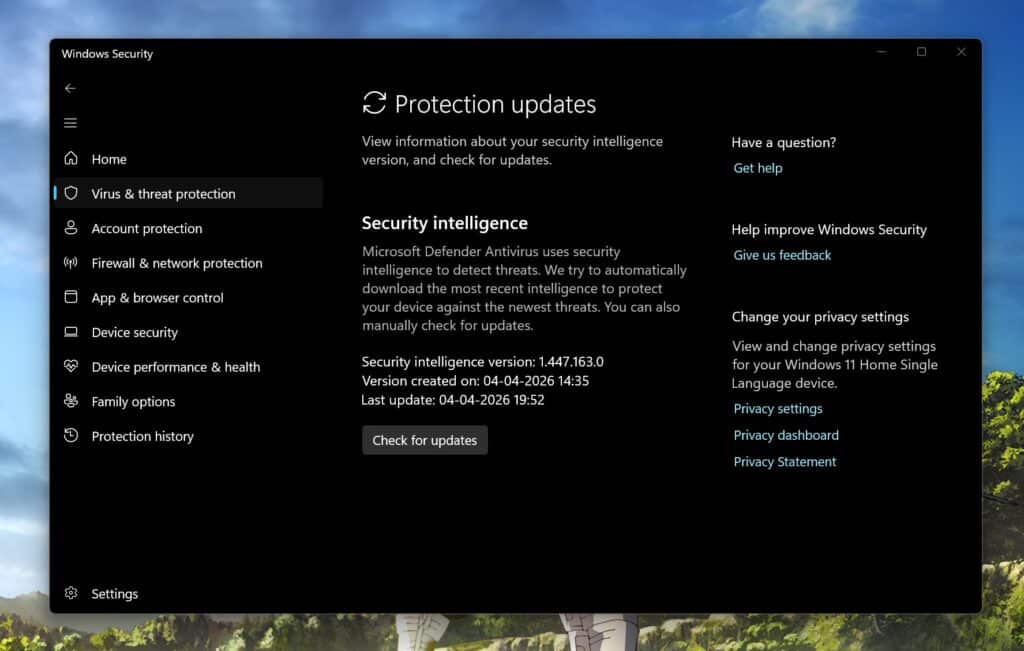
Windows Security will try to find the latest update from the official server and install it on your PC. I find it useful because it works even if the Windows Update feature doesn’t work.
2. Update Windows Security Using Microsoft PC Manager
PC Manager is a system cleanup and management tool. Along with the usual disk cleanup and maintenance tasks, it can update Windows Security components whenever you run it. Here’s how:
- Download and install Microsoft PC Manager if you don’t have it.
- Launch the app.
- Click Protection button.
- Select Windows Updates.

- Wait for the tool to fetch the latest security updates.
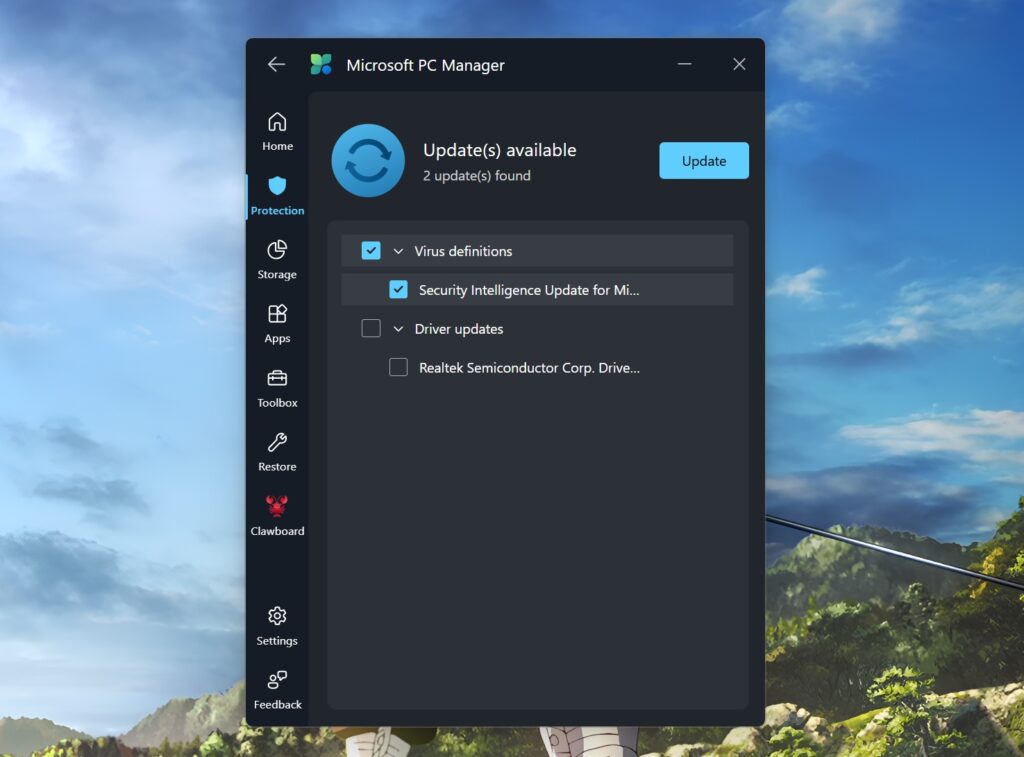
This method is beneficial if your Windows update page and the Security app fail to install updates.
3. Update Windows Security Using PowerShell (Direct Install)
You can use the Update-MpSignature PowerShell command to force update virus, spyware, and other security definitions. Here’s how to do it:
- Right-click on Start.
- Select Terminal (admin) option.
- Click OK.
- Type the following command and press Enter:
Update-MpSignature
- Verify the update installation by running the following command:
Get-MpComputerStatus
You can even check for the update timestamp in Windows Security.
4. Update Windows Security Using Command Prompt (MpCmdRun.exe)
It’s a multi-function tool to control and reset Windows Security and can also force install updates.
Repeat the following steps:
- Open Start menu and search cmd.
- Click Run as administrator.
- Select OK.
- Type the following command and press Enter:
"%ProgramFiles%\Windows Defender\MpCmdRun.exe" -SignatureUpdate
It will take a while to find and apply the updates, if any.
5. Update Windows Security Using Offline Installer File
You can directly download the most recent version of the Windows Defender suite on your Windows PC. Microsoft frequently updates the app with direct download links on the official website. You’ll notice the name mpam-fe.exe, which is the executable file name of Windows Security.
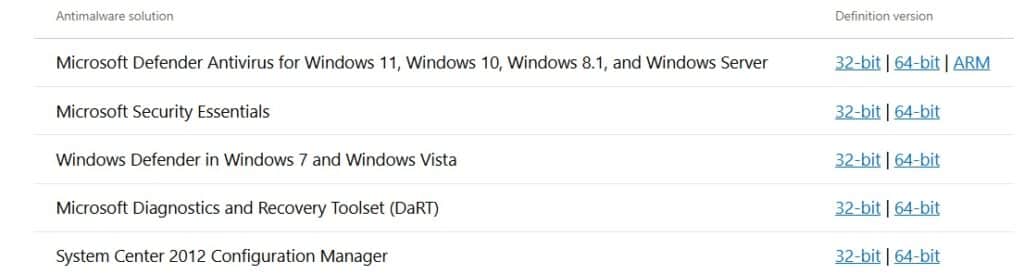
If you use Windows 11 or the 64-bit edition of Windows 10, download the 64-bit update. The remaining two download links are useful for users with ARM or 32-bit Windows 10 PC.
Then run the installer file and wait for it to update the Windows Security app with the latest version.
6. Update Windows Security Using Group Policy (Enterprise)
If you are an admin and want to mass update all the systems with the latest version, you’ll have to first force apply a policy refresh via the admin portal. Here’s how:
- Right-click on Start.
- Select Terminal (admin) option.
- Click OK.
- Type the following command and press Enter:
gpupdate /force
- Run the command below to force update Windows Security:
Update-MpSignature
Note: This method uses the same PowerShell cmdlet with a combination of updating polices.
Conclusion
Microsoft made Windows Security free to keep your PC protected at all times. If you ignore updating Windows Security, your PC will not have the latest virus definitions, which means the tool won’t be able to detect recently launched or modified malware.
I’ve discussed multiple methods to force update Windows Security when the automatic update doesn’t work. Using the in-app update option and PC Manager are the easiest ones, but I trust the PowerShell method because it works even if other components like Windows Update don’t work.